
Google Consent Mode
|
Applies to: WordPress Plugin + Admin Portal WP Admin: Protection tab > Consent Modes
|
Google Consent Mode v2 lets Google tags (Analytics, Ads, Floodlight, etc.) adapt to a visitor’s consent. Compliance by Hu-manity.co sets a default state (before any choice) and then updates Google when the visitor selects an Access Level that enables the relevant Purpose Categories. The result: measurement and advertising stay aligned with your consent policy.
Google Consent Mode is available on both the Free and Professional plans.
What it does in Cookie Compliance terms
While Cookie Compliance expresses consent as Purpose Categories and visitor-friendly Access Levels, Google Consent Mode uses consent types (parameters). The points below show how Cookie Compliance maps your model to Google’s types, and how the banner sets a default on load and updates it after the visitor chooses.
- Default → Update flow. On page load, Cookie Compliance sets a default consent state; when the visitor makes a choice, the banner updates it so Google tags adjust immediately (no reload required). This is how Google intends Consent Mode to be used.
- Consent types. Cookie Compliance drives Google’s parameters:
ad_storage,analytics_storage, plus v2 parametersad_user_dataandad_personalization(controls for storage, ads measurement, and ads personalization). - Access Levels → Purposes → Google (practical mapping).
- Private → Basic Operations only (no Ads/Personalization; Analytics only if your policy permits measurement without identifiers).
- Balanced → Site Optimization allowed; Ad Personalization off.
- Personalized → Site Optimization + Content Personalization + Ad Personalization on. Cookie Compliance maps these choices to the Google consent types at runtime.
- Autoblocking + Consent Mode (complementary). Autoblocking prevents non-essential tags from initializing before consent; Consent Mode ensures that when tags run, Google’s own behavior respects the same consent state.
Enabling Google Consent Mode
Enable Google Consent Mode in the WordPress admin. Steps:
- In WordPress admin, open Compliance by Hu-manity.co.
- Go to the Protection tab → Consent Modes.
- Find Google Consent Mode v2 and toggle Enabled.
- Click Apply to save.
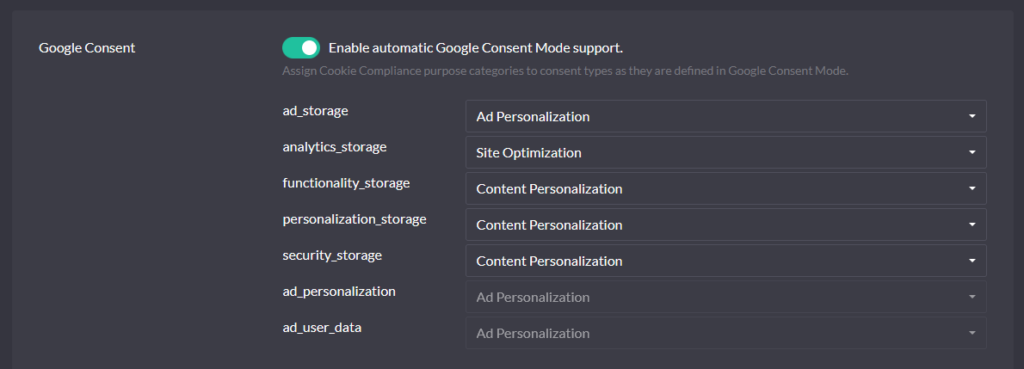
Alternatively, you can enable Google Consent Mode from the hu-manity.co portal at app.hu-manity.co → Configuration → Consent → Google Consent Mode.
Implementation in a website
Manual (straightforward)
Once enabled, place Google tags below the Cookie Compliance script in <head>. This ensures Google receives the default consent state first, then the update after user action. No edits to the Google snippet are required for the basic integration.
Using Google Tag Manager (GTM)
Don’t call gtag('consent', ...) from a Custom HTML tag—use consent template tags/API or let Cookie Compliance drive it. Use Tag Assistant to verify you see a default then an update.
If you add any consent defaults inside GTM, use the Consent Initialization trigger so those defaults run before any other tags. (Cookie Compliance already sets consent; avoid duplicate/late defaults.)
Google Consent Mode parameters
Google recognizes these parameters and adjusts behavior:
ad_storage– ad cookies/storage.analytics_storage– analytics cookies/storage.ad_user_data– permission to send user data to Google for ads measurement (e.g., enhanced conversions).ad_personalization– permission for personalized advertising/remarketing.
For EEA/UK traffic, Google specifically expects ad_user_data and ad_personalization in addition to the classic storage flags. Cookie Compliance sends these states automatically once Consent Mode is enabled.
Verification (quick, practical)
- Tag Assistant / consent debugging. Confirm you see a default set before tags load, and an update after interaction. Each parameter you default must be updatable both to “granted” and “denied.”
- GA4 checks. In GA4, link warnings will point out missing ad_user_data or ad_personalization consent for EEA streams; when Cookie Compliance updates consent, these warnings clear as the signals arrive.
Common pitfalls (and fixes)
- Consent defaults too late. If Google tags initialize before the consent defaults are set, Google may treat the request as if consent were granted — which is why ordering matters. Make sure Cookie Compliance loads at the top of
<head>and Google tags are placed under it; in GTM, use Consent Initialization for any additional default-setting you do. - Missing v2 parameters. Some setups send only
ad_storage/analytics_storage. Ensuread_user_dataandad_personalizationare part of the state. Cookie Compliance covers these automatically once Consent Mode is enabled. - Conflicting defaults. Avoid setting separate defaults in GTM that compete with Cookie Compliance; use one source of truth and verify with Tag Assistant.