
Getting Started
|
Applies to: WordPress Plugin + Admin Portal WP Admin: WelcomeModal onboarding flow
|
Cookie Compliance adds a consent banner to your site, enforces choices at runtime, and records decisions for audit. You install the Compliance by Hu-manity.co WordPress plugin (or add a manual snippet), complete the onboarding flow, and verify that non-essential services stay paused until visitors choose.
Step 1 — Install and connect (WordPress)
- Install and activate the Compliance by Hu-manity.co plugin from the WordPress plugin directory.
- On activation, the WelcomeModal opens automatically. Follow the three-step flow:
- Choose Protection — select your compliance level (Basic free plan or Professional paid plan).
- Confirm — review the liability and compliance summary.
- Create Account — register or sign in to connect your site to the Compliance platform.
- Once connected, open the plugin via the Compliance top-level menu in WordPress admin (it is not under Settings). The React admin opens with three tabs:
- Protection — compliance rules, consent modes (Google, Meta, Microsoft, GPC), and tracker blocking status.
- Settings — banner design, consent behavior, privacy policy link, custom scripts, display/animation, and technical settings.
- Audit Trail — consent log viewer and CSV export (Pro plan).
Troubleshooting: still showing Pending/Inactive?
If statuses still show Pending/Inactive, open the Compliance portal at app.hu-manity.co, go to Integrations, copy your App ID and App Key, paste them into the plugin’s connection fields, and click Save Changes.
Step 1 (alternative) — Create your property in the portal first
If you prefer to configure your domain before installing the plugin:
- Sign in to the Compliance portal and Add domain.
- Open Configuration and set the essentials you want live on day one:
- Access Levels (Private, Balanced, Personalized)
- Purpose Categories (Basic Operations, Site Optimization, Content Personalization, Ad Personalization)
- Languages (English is provided; add domain languages and fill their strings)
- Default consent level and Duration (how long a choice stays valid before asking again)
- Geolocation defaults if you vary the starting posture by region
- Options such as Revoke Consent visibility, Privacy Policy link, and GPC support
- Click Publish Now in Configuration to activate the property.
Publishing first prevents “Pending/Inactive” states when you connect the site.
Step 2 — Connect your site (manual implementation)
For non-WordPress platforms, go to Integrations in the portal, copy the generated snippet and paste it at the very top of <head> — inline init first, then the loader from our CDN. Keep both before any tag manager, analytics, or ad pixels.
<!-- Cookie Compliance: inline init -->
<script>
  var huOptions = {
    "appID": "YOUR_APP_ID",
    "currentLanguage": "en",
    "blocking": true,
    "globalCookie": false
  };
</script>

<!-- Cookie Compliance: loader -->
<script src="https://cdn.hu-manity.co/hu-banner.min.js"></script>
Step 3 — Verify the banner and enforcement
Load the site as an anonymous visitor (logged out or in a clean session).
You should see:
- The banner on first visit in the expected language.
- No non-essential requests before a choice.
- After selecting Private, only Basic Operations run.
- After selecting Balanced or Personalized, only the purposes you mapped for that level run.
- The Revoke Consent control available if you enabled it.
In Audit Trail (WordPress admin) or Consent Logs (portal), confirm a new Cookie Consent entry with the selected Access Level and the purpose switches at that moment. Use Export CSV (Pro plan) or a Proof of Cookie Consent report when you need evidence.
Configure what visitors actually see
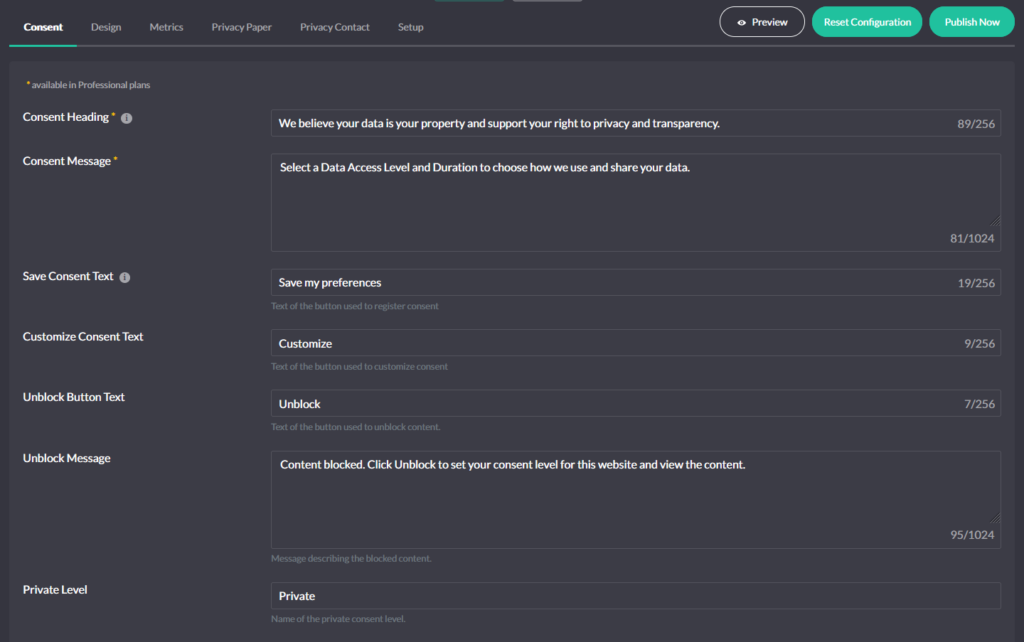
Access Levels & Purposes
Decide what Balanced should allow (for example, “measurement only” vs “measurement + on-site personalization”) and set the Purpose Categories to match. The banner shows clear labels; Autoblocking and integrations enforce the mapping.
Languages
English ships complete. Add every language you serve in Languages, fill the text strings (banner title/description, buttons, Access Level labels, Purpose names/descriptions, policy links, duration labels), and Publish. The banner falls back to English for any missing text. WordPress sites select the language from the page’s locale and work with WPML, Polylang, and TranslatePress.
Geolocation
Use Automatic or Manual Geolocation to set regional defaults such as Banner Display, Revoke option, Autoblocking on/off per zone, and policy links. These are starting rules; the visitor’s choice decides what actually runs.
Consent Modes
Enable the consent modes you use—Google, Meta (Facebook), Microsoft—in the WordPress admin Protection tab under Consent Modes, or via the portal at Configuration → Consent. Tags stay constrained before consent and expand only after visitors accept the relevant purposes.
GPC support
If your policy honors Global Privacy Control, enable it in the Protection tab under Consent Modes. Sessions start protected: sale/sharing-related purposes (typically Ad Personalization) stay off until a visitor explicitly opts in.
Common “Getting Started” issues (and fast fixes)
Status is Pending/Inactive → Publish in the portal, then return to the WordPress admin; if needed, paste the correct App ID/Key from Integrations.
Banner doesn’t appear → Ensure the inline init and loader sit first in <head>; disable aggressive JS optimization for our scripts; verify Banner Display = On for the visitor’s zone.
Vendors fire before consent → Review Provider patterns in Autoblocking (portal) and confirm they map to the right Purpose Categories; keep our scripts ahead of GTM/analytics.
Language mismatch → Add that language and strings in the portal; publish; in WP, click Pull Configuration in the domain card; clear site/CDN caches.