
Consent Logs Overview
|
Applies to: WordPress Plugin + Admin Portal WP Admin: Consent Logs tab
|
Consent Logs are Cookie Compliance’s audit trail of consent events. They appear in the application, export to CSV, and follow your plan’s retention window. Additionally, logs cover two areas—Cookie Consent (banner choices) and Privacy Consent (policy/notice acknowledgments)—so you keep a clear record for audits and internal reporting.
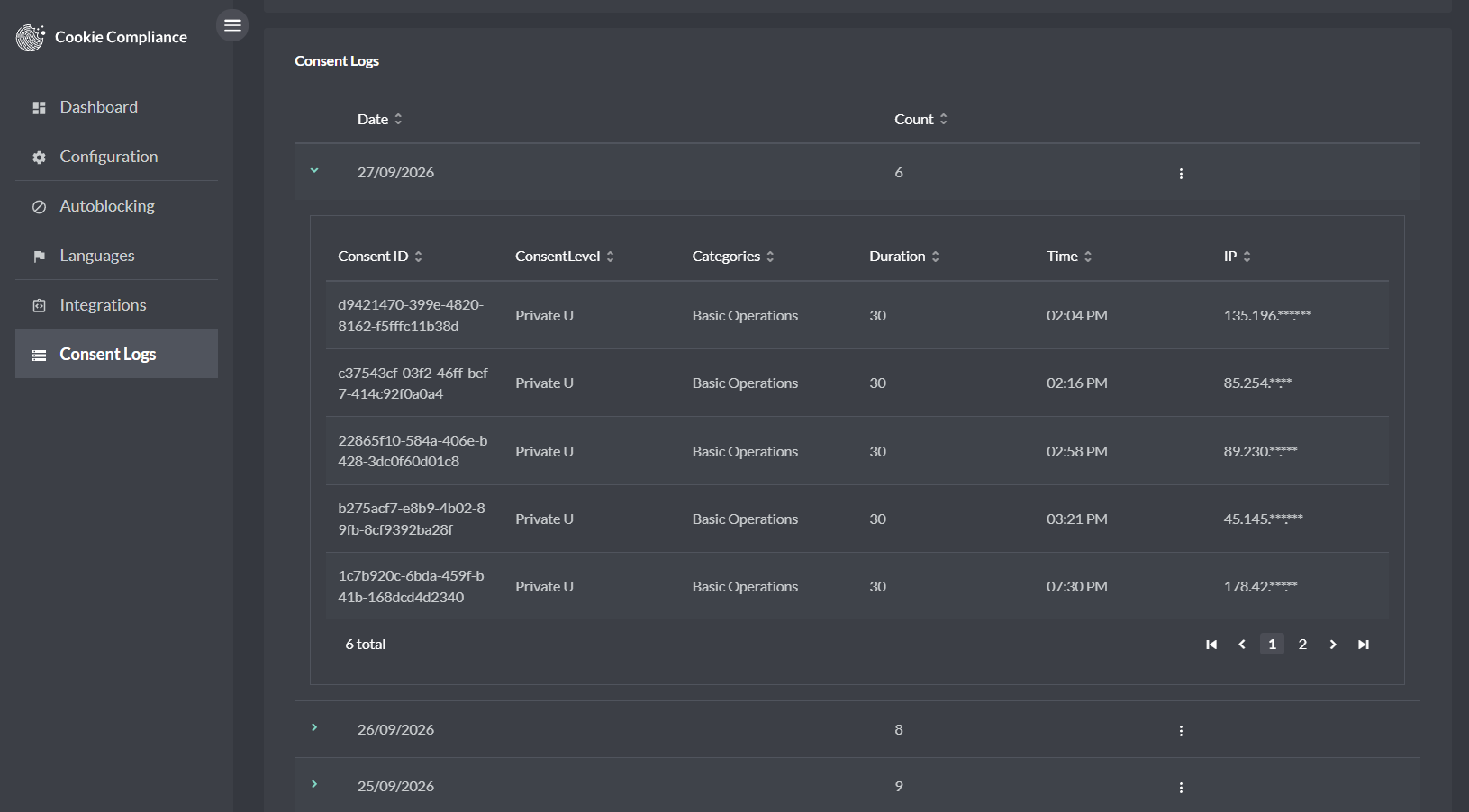
WordPress admin Consent Logs tab: The Consent Logs view in the WordPress admin is read-only — you cannot add or delete consent entries here. CSV export is available to Pro plan users directly in the WordPress admin sidebar. Free plan users must upgrade to access export.
What’s stored per entry
- Access Level at the time (Private, Balanced, or Personalized).
- The Purpose Categories enabled by that Access Level (e.g., Basic Operations; Site Optimization; Content/Ad Personalization).
- The action that recorded it (for example, Save or closing the banner) and a timestamp.
- Configuration reference (so you can tie the decision back to the banner settings in effect).
- Consent record ID (for correlation across exports/reports).
What it proves
- The visitor saw the banner, made a specific choice, and, when applicable, changed or revoked it later.
- Autoblocking and integrations acted on the permitted purposes at that moment.
How entries are created and updated
- First decision — the visitor’s initial action (accept/reject) creates the first log entry.
- Change — a later change (e.g., Balanced → Personalized) creates a new entry; the previous one remains intact.
- Revoke — withdrawing consent creates another entry, which preserves history.
Logs remain append-only for auditability. In the Admin Portal, a Privacy Consent entry can be deleted only on the day it was recorded; there is no delete option for Cookie Consent entries.
Plan limits
Retention and record caps differ by plan:
- Free plan — Cookie Consent logs have a 7-day log history (shown and exported in the dashboard). Privacy Consent records are capped at 100 entries. The dashboard shows and exports the last 7 days of Cookie Consent logs; CSV export in the WordPress plugin needs Professional.
- Professional plan — Cookie Consent records can be queried and exported for any date range since the domain was added. Privacy Consent records are unlimited. CSV export is available in the WordPress admin sidebar.
Privacy Consent
This section records non-cookie consent acknowledgments captured via privacy notices or forms you configure. For example, it tracks acceptance of policies, declarations, or similar site-level consents distinct from cookie choices.
What’s stored per entry
- Consent item (the name/identifier of the privacy notice/policy/declaration shown).
- Decision (accepted / declined / withdrawn) and timestamp.
- Configuration reference (the version of the text/notice presented).
- Consent record ID for correlation.
- Optional contact fields if you explicitly collect them in your notice/form (e.g., an email); email anonymization partly hides it in the logs view, though the full address is stored.
What it proves
- A specific privacy notice or declaration was presented and accepted/declined at a given time, separate from cookie consent.
Working with logs in the application
In the application, the Consent Logs view shows a chronological list of recorded events. Use the anonymization control to mask optional identifiers (e.g., IP or email) right in the UI—this is often required before sharing screenshots or exports. Open any row to see its details: for Cookie Consent, you’ll see the Access Level and the Purpose Categories in effect at that moment; for Privacy Consent, you’ll see the specific policy/notice item and decision. Each entry also includes a configuration reference and a consent record ID so you can correlate what you see on screen with your CSV export or Proof of Consent report. Cookie Consent exports follow your IP anonymization setting. A Privacy Consent date-range export is not masked, so check an export for identifiers before sharing it.
Data anonymization
Data anonymization is designed to reduce exposure to personal identifiers in Consent Logs—especially when you’re viewing entries in shared spaces, exporting CSVs for audits, or sending samples to vendors. Use it to uphold data-minimization principles and avoid circulating raw IPs or emails when they’re not strictly necessary for the task at hand. You might choose not to anonymize temporarily if you’re doing a narrow, internal investigation that genuinely requires the original identifiers (e.g., correlating a specific complaint or debugging a single session); in those cases, switch it off only for as long as needed, then restore anonymization before sharing or exporting.
What you can anonymize
- IP address — hides the last part of the address (for example, the last two numbers of an IPv4 address) when logs are shown. The full IP address is still stored.
- Email (only if you collect one in a Privacy Consent form/notice) — hides most of the address when logs are shown (the first and last letters of the name stay visible). The full address is still stored.
What anonymization does (and doesn’t)
- Does: hide part of the IP address and email in the logs view, in Cookie Consent exports and in single-entry Privacy Consent exports (not in a Privacy Consent date-range export); keep all consent facts intact (event time, event type, Access Level, Purpose Categories, consent item, configuration reference, consent record ID).
- Doesn’t: change the underlying consent decision or your ability to generate Proof of Cookie/Privacy Consent reports.
Consent Logs Export
Use Export to pull a copy of your Consent Logs for audits, internal records, or data requests. On Free, the dashboard shows and exports the last 7 days of Cookie Consent logs. Privacy Consent export, and CSV export in the WordPress plugin, need a Professional plan.
What gets exported
- Both Cookie Consent (banner choices) and Privacy Consent (policy/notice acknowledgments), based on your current filters.
- Cookie Consent columns include the consent time (
iat), consent level, allowed categories (purpose), consent ID (jti), session ID, site address (iss, the origin only, not the full page URL), visitor country (jurisdiction), visitor IP (ip, in date-range exports) and your data-controller details. - Cookie Consent exports follow your IP anonymization setting. A Privacy Consent date-range export is not masked, so check an export for identifiers before sharing it.
How to export
Admin Portal
- Open app.hu-manity.co → Consent Logs.
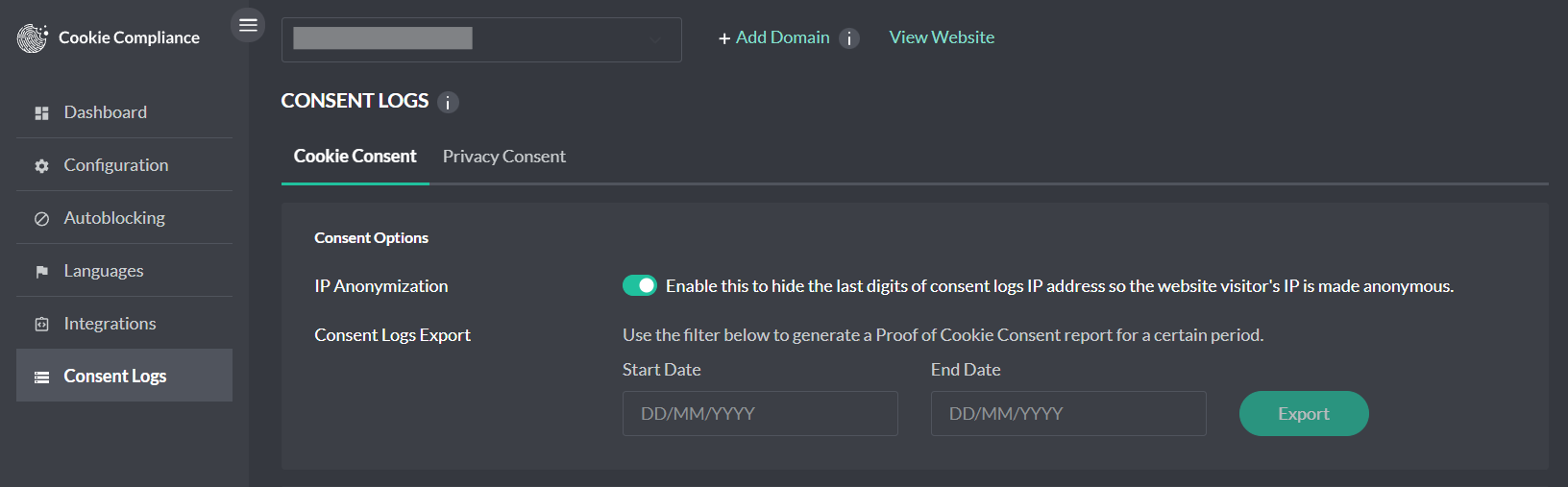
- Set Start Date and End Date.
- Click Export. On the Cookie Consent tab the file follows the IP anonymization setting; on the Privacy Consent tab a date-range export is not masked.
WordPress plugin
- In your WordPress admin, open Compliance.
- Open the Consent Logs tab. (The classic screen's Consent Logs page has no export; use the Admin Portal.)
- Under Export Consent Log, pick the date range. This needs the Professional plan.
- Click Export CSV.
Format & timezone
- CSV, UTF-8.
- Timestamps export in the application’s display timezone.
Retention & availability
- Export availability follows your plan’s retention window. If older entries have rolled off, they will not appear in new exports. The Free plan is limited to a 7-day Cookie Consent log history and up to 100 Privacy Consent records.