
Customizing Banner Design
|
Applies to: WordPress Plugin + Admin Portal WP Admin: Settings tab > Banner Design
|
In the WordPress admin, open Compliance by Hu-manity.co and go to the Settings tab → Banner Design section to set placement, revoke icon behavior, toolbar visibility, duration control, animation, colors, and font sizes. These options shape the banner’s look and movement without touching code.
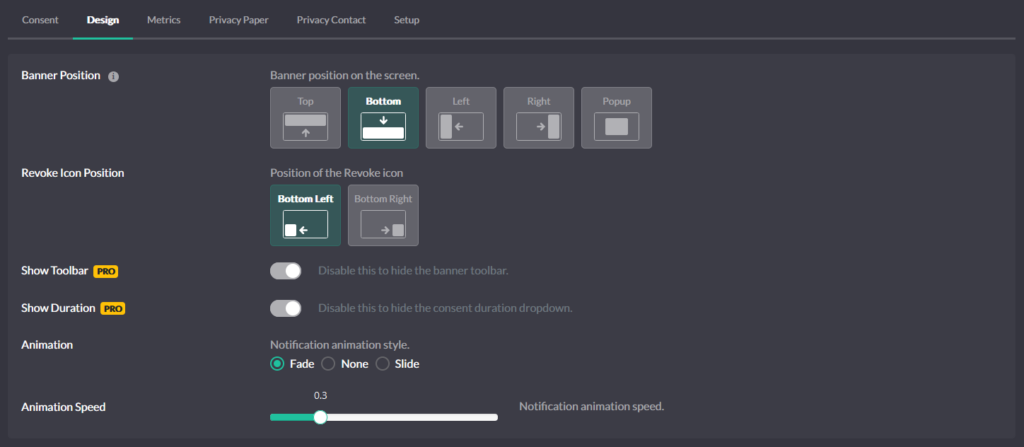
Position (layout on the page)
Choose where the banner appears on screen:
- Top or Bottom – full-width anchored bars (fixed display type). These bars remain at the edge of the viewport and do not scroll with the page.
- Left or Right – side tray panels (floating display type). These float over content without anchoring to the full page width.
- Popup – a centered modal (floating display type, Professional plan only). The modal overlays the page and draws immediate attention.
Pick a position that doesn’t collide with your site header or chat widgets.
Revoke icon placement
Show the fingerprint Revoke icon and place it at Bottom-left or Bottom-right. If you prefer your own control, disable the icon here and wire a custom trigger from the Consent settings.
Toolbar (brand + quick actions)
Toggle Show Toolbar. The toolbar displays the site identity and quick actions like expand and proof-of-consent access. Hide it for ultra-minimal layouts, or keep it to surface trust signals.
Duration selector (visitor-controlled)
Toggle Show Duration to let visitors choose how long their consent should last from the durations you enabled. If you remove it, the banner still applies your default duration.
Animation (how the banner arrives)
Choose slide or fade and set the speed. Smooth motion draws attention without feeling intrusive; match speed to your site’s UI rhythm.
Colors (brand match and clarity)
Set the palette so the banner fits your brand and remains readable:
- Primary Color – buttons and active elements
- Border Color – outlines and inactive elements
- Level 1 / 2 / 3 Colors – bullets for Private, Balanced, Personalized
- Background – banner background
- Headline – title text
- Text – body copy
- Button Text – button labels
Aim for strong contrast for accessibility and legibility.
Font sizes (hierarchy and readability)
Adjust Headline and Text sizes so the title leads and copy stays readable on mobile. Keep line lengths comfortable in side trays and popups.
Configuring Banner Design in the Admin Portal
The Admin Portal at app.hu-manity.co → Configuration → Design provides the full set of banner design options, including several that are not available in the WordPress admin:
- Additional positions — Left and Right side-tray panels, plus a centered Popup modal (Professional plan only).
- Explicit display type — Choose between floating (panels, trays, popup) and fixed (full-width anchored bars) directly, rather than having it derived from position.
- Icon margins — Fine-tune the revoke icon’s position with pixel-level margin controls.
After making changes in the portal, click Publish Now. Then in WordPress admin, click Pull Configuration in the domain card sidebar (or wait for the 24-hour auto-sync) to apply the portal settings to your site.
Banner Design: WP Admin vs Portal
| Setting | WP Admin | Portal |
|---|---|---|
| Position (top / bottom) | Yes | Yes |
| Position (left / right tray) | — | Yes |
| Position (popup / center) | — | Yes (Pro) |
| Display type (floating / fixed) | Derived from position | Explicit selector |
| Revoke icon placement | Yes | Yes |
| Revoke icon margins | — | Yes |
| Toolbar toggle | Yes | Yes |
| Duration selector toggle | Yes | Yes |
| Animation (slide / fade / speed) | Yes | Yes |
| Colors (full palette) | Yes | Yes |
| Font sizes | Yes | Yes |