
Configuration Overview
|
Applies to: WordPress Plugin + Admin Portal WP Admin: Compliance by Hu-manity.co (Protection / Settings / Audit Trail)
|
This article is for connected users (Free and Professional plans). Configuration in Compliance by Hu-manity.co is split across two interfaces: the WordPress admin plugin panel and the Admin Portal at app.hu-manity.co. Each interface exposes different controls. This article covers both.
WordPress Admin: 3-Tab Layout
Once your site is connected, the WordPress admin at WP Admin → Compliance shows three tabs. The Protection tab is the default landing page.
Protection Tab (default)
Your compliance dashboard — shows your consent setup health at a glance and provides inline wizards for first-run configuration.
Dashboard Header
A title bar reading “Your Compliance Dashboard” with a dynamic subtitle that highlights the most important action needed:
- If no regulations are selected: “No regulations selected — add laws to activate consent enforcement”
- If autoblocking is disabled: “Autoblocking disabled — trackers may load before consent”
- If uncategorized trackers exist: “X uncategorized trackers need review”
- If everything is configured: “All protections active — trackers blocked, consent recorded”
Professional plan users also see a Pro badge next to the subtitle.
First-Run Setup Wizard
After connecting your site for the first time, a 3-step inline wizard appears at the top of the Protection tab:
- Template — pick a banner style from the available presets
- Laws — select which privacy regulations apply to your site (GDPR, CCPA, LGPD, PIPEDA, POPIA, etc.)
- Languages — add additional banner languages
You can skip any step and return later. Once you click Apply & Finish, the wizard is dismissed and the Status Cards appear. A connected notice above the wizard also reports how many trackers were detected on your site.
Status Cards
Three summary cards showing your current configuration at a glance:
- Banner — shows the active template name with a thumbnail preview, position and display type (e.g., “Bottom · Fixed bar”). Actions: Change template, Edit colors & text (opens portal), Preview (opens site with
?cn_preview=1). - Laws & Languages — count of active regulations with flag-emoji pills (e.g., “🇪🇺 GDPR”, “🇺🇸 CCPA”) and language count. Actions: Edit laws (opens inline law selector), Manage Languages (opens portal).
- Trackers & Consent Modes — tracker count with categorization status, plus pills showing active consent modes (e.g., “Google”, “GPC”). Shows an amber warning if autoblocking is off or uncategorized trackers are firing without consent. Actions: Consent modes (opens inline panel), View Trackers (opens Tracker Status panel), Manage in portal (opens portal Autoblocking page).
Tracker Status Panel
Replaces the Status Cards when opened (click View Trackers on Card 3). A read-only view of all detected script providers on your site, grouped by purpose category:
- Basic Operations — essential scripts (always allowed)
- Content Personalization
- Site Optimization
- Ad Personalization
- Uncategorized — scripts firing without consent (shown with a red “Firing without consent” badge)
Click Refresh to re-sync the tracker list from the portal. To add, edit, or recategorize providers, click Manage trackers in portal to open the portal’s Autoblocking page.
Consent Protection Settings panel
Opens inline when you click Consent modes on Status Card 3. Toggle consent mode integrations. The panel has two sections: Platform Integrations (Google, Facebook, Microsoft) and Browser Signals (GPC, Do Not Track).
| Consent Mode | Plan | Signals |
|---|---|---|
| Google Consent Mode v2 | Free | ad_storage, analytics_storage, ad_user_data, ad_personalization |
| Facebook (Meta) Consent Mode | Pro | Consent level signal to Meta Pixel |
| Microsoft Consent Mode | Pro | ad_storage, analytics_storage, Pixie toggle, Clarity toggle |
| Global Privacy Control (GPC) | Free | Honors browser GPC signal as opt-out |
| Do Not Track | Free | Honors browser DNT signal |
Pro-only modes (Facebook, Microsoft) show a Pro badge on the Free plan. Click the badge to open the in-app upgrade modal.
Inline Notices
Contextual notices appear between the header and content when relevant:
- “Your banner is live” (green) — appears once after completing setup, with a link to preview your live banner
- “Still missing: ...” (blue) — lists items that still need attention (e.g., banner template, laws, uncategorized trackers)
- “Google tools detected” (yellow) — appears when Google scripts are found but Google Consent Mode is not yet enabled
Threat Intelligence
At the bottom of the Protection tab. Shows security and compliance alerts based on detected threats — for example, a warning if Google Ads scripts are found without Google Consent Mode enabled.
Settings Tab
For connected users, the Settings tab has three main areas: Status Cards (same 3 cards from the Protection tab), Compliance Behavior (law-aware settings cards), and WordPress Settings (plugin-level options).
Status Cards
The same 3-card grid from the Protection tab (Banner, Laws & Languages, Trackers & Consent Modes) also appears at the top of the Settings tab so you can change templates, laws, and consent modes without switching tabs. The Trackers card on this tab reacts live to autoblocking toggle changes in Compliance Behavior below.
Compliance Behavior
A grid of setting cards that adapts based on the laws you’ve selected. Each card shows its current value, a color-coded compliance status dot (green = compliant, yellow = warning, red = critical), and which laws require it.
The 9 compliance settings:
| Setting | What It Does | Managed In |
|---|---|---|
| Autoblocking | Blocks non-essential scripts until consent is given | WP Admin |
| Accept on scroll | Treat page scroll as consent (off = compliant for GDPR) | Portal |
| Accept on click | Treat any page click as consent | Portal |
| Accept on close | Treat closing the banner as consent | Portal |
| Refuse button | Show a reject/refuse button in the banner | WP Admin |
| Revoke consent | Allow visitors to withdraw consent via a floating icon | WP Admin |
| GPC support | Honor Global Privacy Control browser signal as opt-out | Portal |
| Consent expiry | How long consent lasts before re-prompting | Portal |
| Cookie wall | Block page access until a consent decision is made | Portal |
Settings managed in the portal show a Manage in web app → link that opens the portal in a new tab with your authentication pre-loaded.
Portal-only settings (read-only in WP admin): UI Blocking (Cookie wall), Accept on Close, and GPC Support Mode appear as informational cards in the WP admin Compliance Behavior section but cannot be edited there. Each card displays its current value and a Manage in web app link that opens the corresponding portal page. To change these values, click through to the portal at app.hu-manity.co → Configuration → Consent.
WordPress Settings (Plugin Options)
Below Compliance Behavior, the following accordion sections are available for connected users:
- Privacy Policy — enable a privacy policy link in the banner. Choose between a WordPress page or a custom URL. Optionally sync with the WordPress Privacy Page setting.
- Custom Scripts — add JavaScript to the page head or body that executes based on consent state (toggle between Head and Body tabs).
- Display & Animation — banner opacity slider (50–100%) and a custom CSS class field for the accept button.
- Technical Settings — bot detection (on by default), AMP support, caching compatibility (on by default), debug mode, excluded script handles (one WP handle per line, never autoblocked), conditional display rule builder (show/hide banner on specific pages, post types, taxonomies, or user types), delete data on deactivation, and a Purge Cache button to force re-fetch from the portal.
Audit Trail Tab
View and export consent records for your site.
Consent Stats
A breakdown bar showing total consents, personalized, balanced, and private counts across your visitor consent activity. Consent level names reflect your custom labels configured in the portal.
Consent Log Table
Paginated table of consent records showing Consent ID, Consent Level (shown as a pill badge), Categories, Date/Time, and IP Address (masked).
- Free plan: 7-day retention window
- Professional plan: unlimited retention
Compliance Evidence
Automated compliance checks organized in three tabs:
- GDPR (Free + Pro) — checks for active consent banner, cookie categorization, data retention policy, and DPO contact details
- CCPA (Free + Pro) — checks for GPC/Do Not Sell signal, opt-out mechanism, and privacy policy link
- ePrivacy (Pro only) — checks for prior consent before non-essential cookies, consent withdrawal mechanism, cookie lifetime disclosure, and legitimate interest assessment
Each check shows a status icon: green checkmark (pass), yellow triangle (warning), red circle (fail), or gray dash (manual verification required).
Export
Professional plan users can export consent logs as CSV from the sidebar. Free plan users see a limited export option with an upgrade prompt.
Admin Portal: 6-Tab Configuration Page
The Admin Portal at app.hu-manity.co → Configuration provides the full banner configuration interface with six tabs. Use the portal for banner text editing, language management, geolocation rules, and advanced privacy sections.
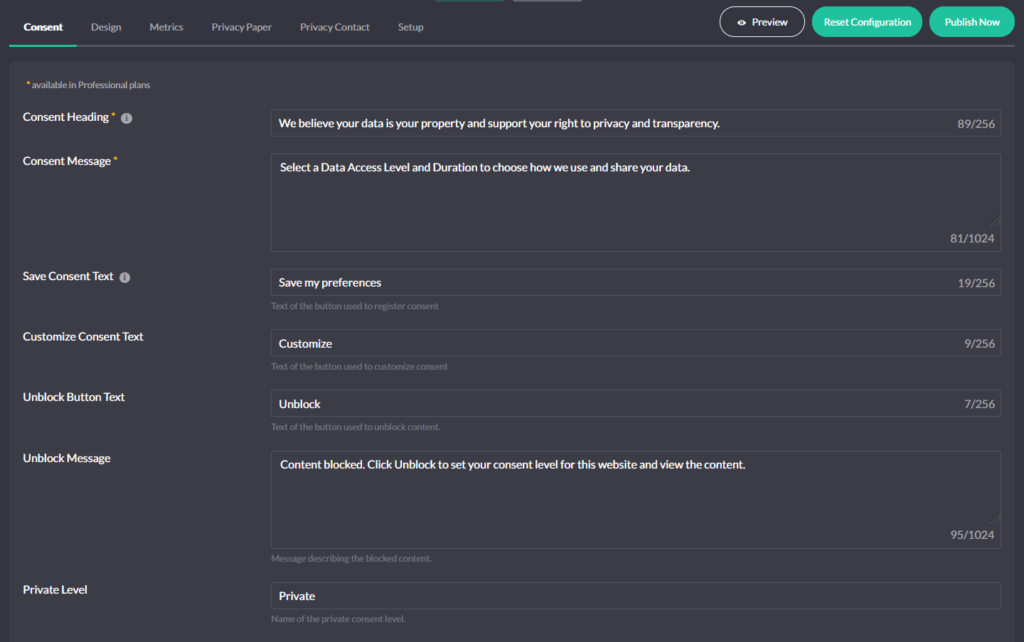
Consent
Define consent behavior and the first-visit experience.
- Expiry & scope — Set consent cookie expiration (8 options: An hour, 1 day, 1 week, 1 month, 3 months, 6 months, 1 year, Infinity) and a global domain for subdomain consistency.
- Consent message & buttons — Write the headline, body, and button labels the visitor sees on first contact.
- Consent Modes — Toggle Google Consent Mode, GPC, and Do Not Track from the portal side.
- Geolocation — Set regional defaults for banner display, revoke option, Autoblocking, and policy links per law/region.
- Policy links — Add links to your Privacy Policy and “Do Not Sell My Personal Information” page.
- Revoke controls — Enable the revoke icon so visitors can reopen the banner and change their choice.
Design
Control how the banner appears to visitors.
- Placement — Choose top, bottom, left/right tray, or popup modal (Pro).
- Display type —
floating(panels, trays, popup) orfixed(full-width anchored bars). - Colors & theming — Full color palette to match your site.
- Elements — Toggle the toolbar and consent-duration chooser; set the revoke icon position and margins.
Metrics
Edit text strings shown in the Protection and Metrics section of the banner, where visitors see data protection details and consent information.
Privacy Paper
Provide detailed information on access levels and an explanation of visitor rights. Visible in the banner’s details panel. Professional plan only.
Privacy Contact
Add contact information for your organization’s data privacy officer and links to external data privacy resources. Visible in the banner’s details panel. Professional plan only.
Setup / Integrations
Access integration instructions (WordPress plugin and manual JavaScript snippet) and manage your App-ID and Secret Key from the portal’s Integrations section in the left-hand navigation.
Where to Configure What
| Setting | WP Admin | Portal |
|---|---|---|
| Banner text (headline, body, buttons) | — | ✓ |
| Banner template & position | ✓ | ✓ |
| Language strings | — | ✓ |
| Geolocation / law-based rules | — | ✓ |
| Autoblocking on/off | ✓ | — |
| Autoblocking providers (add/edit/delete) | — | ✓ |
| Privacy Paper / Privacy Contact (Pro) | — | ✓ |
| Consent Modes (Google, Meta, MS, GPC, DNT) | ✓ | ✓ |
| Refuse button / Revoke consent | ✓ | — |
| Accept on scroll / click / close / Cookie wall | — | ✓ |
| Consent expiry | — | ✓ |
| Custom scripts (head/body) | ✓ | — |
| Bot detection / AMP / Caching / Debug | ✓ | — |
| Excluded script handles | ✓ | — |
| Conditional display (page targeting rules) | ✓ | — |
| Consent log viewer | ✓ | ✓ |
| CSV export (Pro) | ✓ | ✓ |
| Compliance Evidence (GDPR/CCPA/ePrivacy) | ✓ | — |
How Settings Sync
Changes made in the portal take effect after you click Publish Now. The WordPress plugin pulls the latest portal configuration automatically on each admin page visit, or you can click Pull Configuration in the domain info card sidebar. You can also click Purge Cache in Technical Settings to force an immediate refresh.
Changes made in the WordPress admin (Technical Settings, Custom Scripts, etc.) are saved locally to your WordPress database and also synced to the portal API when you click Save WordPress Settings.