
Configuration Overview
|
Applies to: WordPress Plugin + dashboard WP Admin: Compliance (Overview / Cookie Consent / Privacy Consent / Consent Logs)
|
This article is for connected users (Free and Professional plans). Configuration in Cookie Compliance is split across two interfaces: the WordPress admin plugin panel and the Cookie Compliance dashboard at app.hu-manity.co. Each interface exposes different controls. This article covers both.
WordPress Admin: Tab Layout
Once your site is connected, the WordPress admin at WP Admin → Compliance shows four tabs: Overview, Cookie Consent, Privacy Consent (choose which forms record privacy consent) and Consent Logs. The Overview tab is the default landing page. New installs open this interface; a site still on the classic screen can switch from the A new admin interface is available card in the sidebar.
Overview Tab (default)
Your status at a glance — shows your consent setup health and provides inline wizards for first-run configuration.
Verdict
At the top of the tab, a headline summarises your status. When something needs attention it shows a count such as 2 things to fix. If the status cannot be loaded or confirmed yet (for example while autoblocking is still being saved), the headline says so and no box is shown as green.
First-Run Setup Wizard
After connecting your site for the first time, a short inline wizard (Complete Your Setup) appears at the top of the Overview tab:
- Banner style — Standard or Compact (New engine only; on the Classic engine, setup starts at Laws)
- Laws — select which privacy regulations apply to your site (GDPR, CCPA, LGPD, PIPEDA, POPIA, etc.)
- Languages — add additional banner languages
You can skip any step and return later. Once you click Apply & Finish, the languages you picked are applied and the wizard is dismissed. When you are done, you are guided to select your consent signals.
The Six Boxes
Six status boxes show the state of each protection:
- Banner — whether the banner is live on your site and which one: Standard banner or Compact banner on the New engine, or the engine name on the Classic engine. The box turns green only while the banner is live. Links: Banner settings (opens the Cookie Consent tab) and Preview on my site. Colours, position and text are set in the dashboard.
- Script blocking — whether scripts are held until visitors choose. To see or change which providers are held, open dashboard → Autoblocking.
- Google Consent Mode — whether Google Consent Mode v2 is on.
- Meta & Microsoft — whether the Meta (Facebook) and Microsoft consent signals are on. Pro features.
- GPC signal — whether Global Privacy Control is honored.
- Visit limit — Free plan: how much of your 30-day visit allowance you have used. Professional plan: Unlimited.
Boxes that need attention show an action button that takes you to the right place: Review autoblocking and Review GPC setting open the setting cards on the Cookie Consent tab, Consent signals opens the Consent Signals panel, and See plans opens the plans screen when the remedy is a plan.
Preview on my site
Preview on my site opens your site with the banner forced on, so you can see the real banner even when it would be hidden for you. Your banner can be hidden when your browser sends Global Privacy Control, when your region does not require a banner, or when you have already made a choice. For administrators who are logged in, Preview shows it anyway and says why (open Can’t see your banner? on the Banner box). Nothing is saved when you preview. The same link is on the Your banner panel of the Cookie Consent tab.
Consents in the Last 7 Days
Below the boxes, a count of consents recorded in the last 7 days, split by your own consent level names. On the Free plan it also shows visits this cycle against your limit. View consent logs opens the Consent Logs tab.
Next steps
A Next steps list appears when there is something useful to do that the boxes do not already say, and is hidden when there is nothing to do:
- Choose laws — shown when no regulations are selected
- Review consent signals — shown when a known Google plugin (Site Kit, MonsterInsights, WP Google Analytics or GTM4WP), a Facebook Pixel plugin or the Microsoft Clarity plugin is active and its consent signal is off. On the Free plan, Facebook and Microsoft show See plans instead. Tags added any other way are not detected.
- Open Privacy Consent — shown when a supported form plugin is not recording proof of consent yet
A green Your banner is live. notice also appears once after you finish setup and the banner goes live, with a link to preview your live banner.
Consent Signals panel
Opens inline from an action button (Consent signals) or Next steps item on the Overview tab, or from Cookie Consent → Laws, languages & signals → Consent signals. Toggle consent signals. The panel has two sections: Ad Platforms (Google, Facebook, Microsoft) and Browser Signals (Global Privacy Control, Do Not Track).
| Consent Mode | Plan | Signals |
|---|---|---|
| Google Consent Mode v2 | Free | ad_storage, analytics_storage, ad_user_data, ad_personalization |
| Facebook (Meta) Consent Mode | Pro | Consent level signal to Meta Pixel |
| Microsoft Consent Mode | Pro | ad_storage, analytics_storage, Pixie toggle, Clarity toggle |
| Global Privacy Control (GPC) | Pro. A Free site that already has GPC on can still edit it; turning it off on Free means it cannot be turned back on | Honors browser GPC signal as opt-out |
| Do Not Track | Free | Honors browser DNT signal |
Facebook, Microsoft, and GPC show a Pro badge on the Free plan. A Free site that already has GPC on can still edit GPC. Click the badge to open the in-app upgrade modal.
Cookie Consent Tab
For connected users, the Cookie Consent tab has four main areas: the Your banner panel (the engine your site runs, the Standard or Compact style on the New engine, Preview on my site, and links to change the engine or edit colours and text in the dashboard), the Laws, languages & signals card, the setting cards (law-aware compliance settings), and WordPress Settings (plugin-level options). Network Administrators also see Network Settings. If you cannot see your banner on your own site, Preview on my site shows it anyway (see Preview on my site above); nothing is saved.
Laws, languages & signals
A card with three rows: Laws (the active regulations as pills; Edit laws, or Add laws when none are selected, opens an inline law selector), Languages (the language count; Manage languages opens the portal) and Consent signals (the signals switched on, or “None switched on”; the Consent signals button opens the Consent Signals panel described above).
Setting cards
A grid of setting cards that adapts based on the laws you’ve selected. Each card shows its current value, a color-coded compliance status dot (green = compliant, yellow = warning, red = critical), and which laws require it.
Nine cards through plugin 3.1.9. Plugin 3.1.10+ adds Script blocking engine as a tenth card and a toggle. Autoblocking is a toggle on the card. The others display a value.
| Setting | What It Does | Managed In |
|---|---|---|
| Script blocking engine | Master switch (plugin 3.1.10+). Off means nothing is blocked for anyone | Toggle on the card |
| Autoblocking | Block before consent. Does nothing while the engine is off | Toggle on the card |
| Accept on scroll | Treat page scroll as consent | Display only. Edit on Configuration → Behavior. No portal link on the card |
| Accept on click | Treat any page click as consent | Display only. Edit on Configuration → Behavior. No portal link on the card |
| Accept on close | Treat closing the banner as consent | Display only, with Manage in the dashboard. Edit on Configuration → Behavior |
| Refuse button | Show a reject button in the banner | Display only on a connected site. The toggle is in Cookie Consent → Consent Behavior, and that accordion is hidden once the site is connected |
| Update consent | Floating control so a visitor can change a choice | Display only. Edit on Configuration → Behavior. No portal link on the card |
| GPC support | Honor the Global Privacy Control signal | Pro cards show the current mode (for example Passive notice) and Manage in the dashboard. Also editable in the Consent Signals panel (Cookie Consent → Laws, languages & signals → Consent signals). Locked Free sites see Upgrade to Pro |
| Consent expiry | The three stored durations. Shown when GDPR or UK PECR is selected | Display only. Edit on Configuration → Behavior. No portal link on the card |
| Cookie wall | Block the page until a choice is made | Display only, with Manage in the dashboard. Edit on Configuration → Behavior |
UI Blocking (Cookie wall) and Accept on Close are display-only setting cards. Each has a Manage in the dashboard link. Edit them on Configuration → Behavior. On a Pro site the GPC support card also has Manage in the dashboard. Pro sites, and Free sites that already have GPC on, can also change it in the Consent Signals panel (Cookie Consent → Laws, languages & signals → Consent signals), or on Configuration → Consent Signals. A Free site that does not already have GPC on sees Upgrade to Pro on the card. Turning GPC off on Free removes the ability to turn it back on.
WordPress Settings
Below the setting cards, the following accordion sections are available for connected users:
- Privacy Policy — enable a privacy policy link in the banner. Choose your policy page and turn on Sync with WordPress Privacy Page; saving sends your WordPress privacy page to the banner. The link text is set in the dashboard (Configuration → Behavior). With plugin 3.1.16 or later, these are the only Privacy Policy options on a connected site.
- Custom Scripts — add JavaScript to the page head or body that executes based on consent state (toggle between Head and Body tabs).
- Display & Animation — a custom CSS class for the
[cookies_revoke]and[cookies_policy_link]shortcode buttons. Banner opacity is set in the dashboard (Configuration → Design). - Technical Settings — bot detection (on by default), AMP support, WP Consent API, caching compatibility (on by default), debug mode, excluded script handles (one WP handle per line, never autoblocked), conditional display rule builder (show/hide banner on specific pages, post types, taxonomies, or user types), delete data on deactivation, and a Purge Cache button to force re-fetch from the portal.
Consent Logs Tab
View and export consent records for your site, including a Form Consent section with privacy (form) consent records.
Consent Stats
A stats bar showing Total Consents and the share (%) of consents at each level. Consent level names reflect your custom labels configured in the portal on Configuration → Content.
Consent Log Table
Paginated table of consent records showing Consent ID, Consent Level (shown as a pill badge), Categories, Date/Time, and IP Address (masked).
- Free plan: 7-day retention window
- Professional plan: unlimited retention
Compliance Evidence
Automated compliance checks organized in three tabs:
- GDPR (Free + Pro) — checks for active consent banner, cookie categorization, data retention policy, and DPO contact details
- CCPA (Free + Pro) — checks for GPC/Do Not Sell signal, opt-out mechanism, and privacy policy link
- ePrivacy (Pro only) — checks for prior consent before non-essential cookies, consent withdrawal mechanism, cookie lifetime disclosure, and legitimate interest assessment
Each check shows a status icon: green checkmark (pass), yellow triangle (warning), red circle (fail), or gray dash (manual verification required).
Export
Professional plan users can export consent logs as CSV from the sidebar. Free plan users see a limited export option with an upgrade prompt.
Cookie Compliance dashboard: Configuration pages
The dashboard at app.hu-manity.co → Configuration has six pages: Laws, Content, Behavior, Design, Consent Signals, and Privacy. The Banner engine (Classic / New) dropdown sits in the header above those pages. Use them for banner text, geolocation rules, consent behavior, consent modes, and the privacy sections.
On a site using the New engine, settings the New engine does not use are not shown (unless the issues-to-fix list names one): consent on close, click and scroll (with Scroll Offset), UI blocking, the Privacy Policy and Do Not Sell link targets, the Save button text, the three access-level descriptions, and the Microsoft Invest/Curate/Monetize and Clarity toggles. Their saved values are kept and apply again if you switch back to Classic. Settings that behave differently by engine are marked New engine only or Works differently on New.

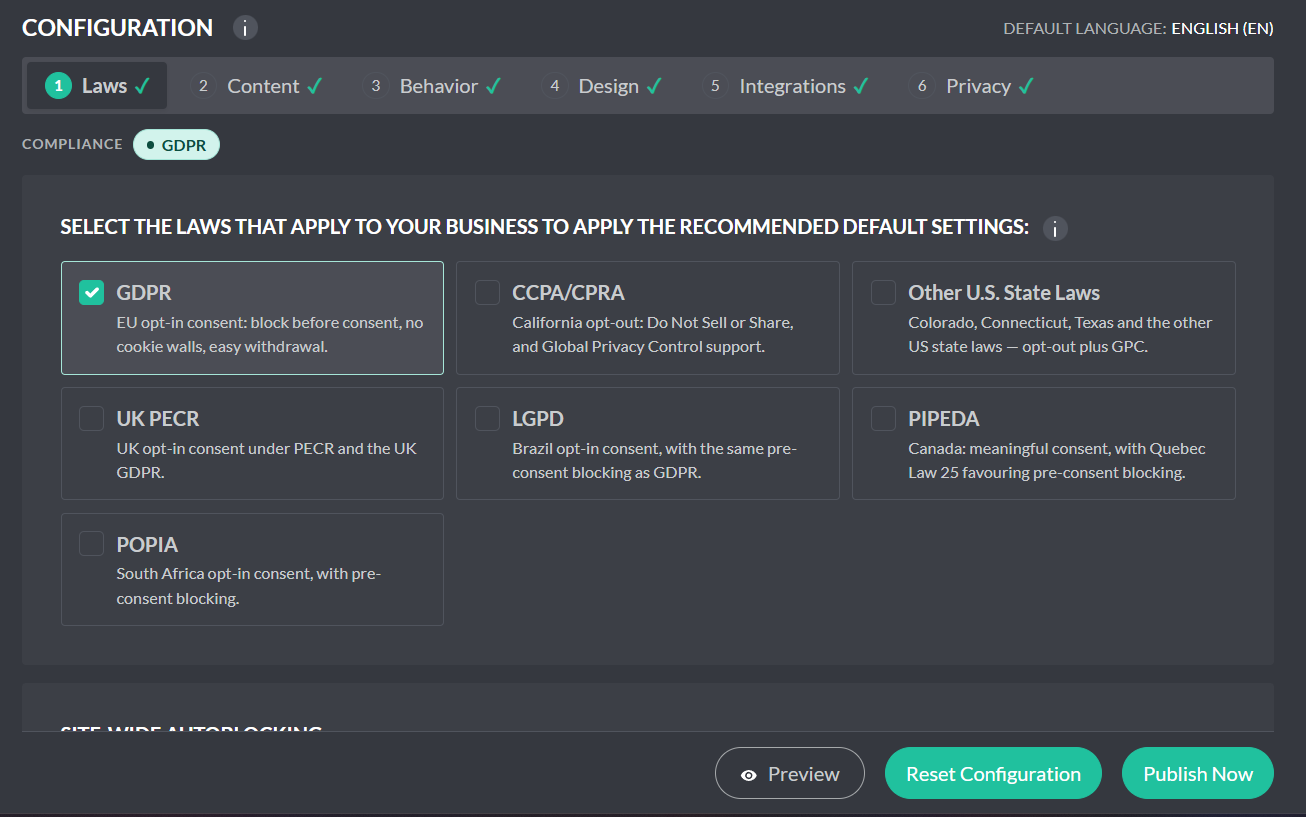
Laws
Choose which regulations apply, and how the banner behaves by region.
- Regulations — Select the laws that apply to the property.
- Site-wide autoblocking — What the banner does before a visitor chooses. On a WordPress site, saving this updates the plugin’s Autoblocking setting, with plugin 3.1.11 or later. The script-blocking engine switch stays in the WordPress plugin.
- Geolocation — Managed or manual method, and per-law rules for Banner Display, Update consent, Autoblocking, Privacy Policy, and Do Not Sell Link.
Content
Write what the visitor reads.
- Banner text — Headline, body, and button labels.
- Consent preferences — Access-level names and descriptions (Private, Balanced, Personalized).
- Metrics — Labels in the Protection and Metrics area of the banner. The numbers come from live consent data.
Behavior
Control how a choice is made, stored, and changed.
- Consent — Number of choices (two or three), default consent level, and Update consent (automatic or manual).
- Implicit consent — Consent on close, click, or scroll, and UI blocking.
- Privacy links — Privacy Policy and Do Not Sell / Share links.
- Consent expiry — Exactly three durations, chosen from 1 month, 3 months, 6 months, 12 months, and 24 months.
Design
Control how the banner appears to visitors.
- Placement — Choose top, bottom, left/right tray, or popup modal.
- Display type —
floating(sized to its content; the default) orfixed(full width at the top or bottom, full height at the left or right). Position and display type are set separately. - Colors & theming — Full color palette to match your site.
- Elements — Toggle the toolbar and consent-duration chooser; set the Update consent icon position and margins.
Consent Signals
Consent-mode signals. This page is not Integrations in the left-hand navigation.
- Google, Facebook, and Microsoft Consent — Enable each mode and map purpose categories to that vendor’s storage types.
- GPC and Do Not Track — Honor those browser signals.
Privacy
Professional plan only. Both sections show in the banner’s details panel on Classic and in the Customize panel on New.
- Privacy Paper — Access levels and an explanation of visitor rights.
- Privacy Contact — Contact details for the data privacy officer, and links to external privacy resources.
Left-nav Integrations
Install instructions (WordPress plugin and the manual JavaScript snippet) and the App-ID and Secret Key are on Integrations in the left-hand navigation, not on Configuration → Consent Signals.
Where to Configure What
| Setting | WP Admin | Portal |
|---|---|---|
| Banner text (headline, body, buttons) | — | ✓ |
| Banner position & colours | Banner Only sites only | ✓ |
| Banner style (Standard / Compact, New engine) | ✓ | ✓ |
| Language strings | — | ✓ |
| Geolocation / law-based rules | — | ✓ |
| Autoblocking on/off | ✓ | ✓ |
| Autoblocking providers (add/edit/delete) | — | ✓ |
| Privacy Paper / Privacy Contact (Pro) | — | ✓ |
| Consent Modes (Google, Meta, MS, GPC, DNT) | ✓ | ✓ |
| Update consent | — | ✓ |
| Accept on scroll / click / close / Cookie wall | — | ✓ |
| Consent expiry | — | ✓ |
| Custom scripts (head/body) | ✓ | — |
| Bot detection / AMP / Caching / Debug | ✓ | — |
| Excluded script handles | ✓ | — |
| Conditional display (page targeting rules) | ✓ | — |
| Consent log viewer | ✓ | ✓ |
| CSV export (Pro) | ✓ | ✓ |
| Compliance Evidence (GDPR/CCPA/ePrivacy) | ✓ | — |
How Settings Sync
Changes made in the portal take effect after you click Publish Now. The WordPress plugin pulls the latest portal configuration automatically on each admin page visit, or you can click Pull latest settings in the Domain Info card in the sidebar. You can also click Purge Cache in Technical Settings to force an immediate refresh.
Changes made in the WordPress admin (Technical Settings, Custom Scripts, etc.) are saved to your WordPress database. On a connected site, Save WordPress Settings changes only one thing on your live banner: the privacy policy link, taken from your WordPress privacy page. Banner colours, position, opacity and consent behavior come from the dashboard.