
Consent Configuration
|
Applies to: WordPress Plugin + Admin Portal WP Admin: Settings tab > Consent Behavior
|
Where to configure consent settings
Setting Where to configure Consent messages (banner copy, button labels, Unblock text, Preferences labels) Portal: app.hu-manity.co → Configuration → Consent Default Consent Level Portal: app.hu-manity.co → Configuration → Consent Privacy Policy link, Do Not Sell/Share link Portal: app.hu-manity.co → Configuration → Consent Geolocation regional defaults Portal: app.hu-manity.co → Configuration → Consent Consent duration Portal: app.hu-manity.co → Configuration → Consent Consent Modes (Google, Meta, Microsoft) Portal: app.hu-manity.co → Configuration → Consent Refuse button (optional opt-out button on banner) WordPress admin → Compliance by Hu-manity.co → Settings tab → Consent Behavior Revoke consent icon (floating widget) WordPress admin → Compliance by Hu-manity.co → Settings tab → Consent Behavior Consent on Close (Accept on Close) — portalOnly Basic / unconnected: WP admin → Compliance → Settings tab → Consent Behavior accordion.
Connected: read-only Compliance Behavior card in the Settings tab with a Manage in web app link to the portal.Consent on Click / Scroll Basic / unconnected: WP admin → Compliance → Settings tab → Consent Behavior accordion.
Connected: Compliance Behavior card in the Settings tab.UI Blocking — portalOnly Basic / unconnected: WP admin → Compliance → Settings tab → Consent Behavior accordion.
Connected: read-only Compliance Behavior card in the Settings tab with a Manage in web app link to the portal.GPC Support Mode — portalOnly Connected: read-only Compliance Behavior card in the Settings tab with a Manage in web app link to the portal. Reloading Basic / unconnected: WP admin → Compliance → Settings tab → Consent Behavior accordion.
Connected: Compliance Behavior card in the Settings tab.Where Basic vs Connected diverges. Basic / unconnected users find all behavioral toggles inside the Consent Behavior accordion on the Settings tab. For connected (Free or Professional) users, the Consent Behavior accordion is hidden and these settings instead appear as Compliance Behavior cards in the Settings tab. Cards marked portalOnly (UI Blocking, Accept on Close, GPC Support Mode) are not editable in the WP admin — they show the current value and link out to the portal for changes.
Use the Consent configuration to control the first-visit experience, how a choice gets made, and how visitors can change it later. The sections below describe the portal-side controls. Behavioral toggles (refuse button, revoke consent, scroll/click/close, UI blocking, reloading) are configured in the WordPress admin Settings tab → Consent Behavior section.
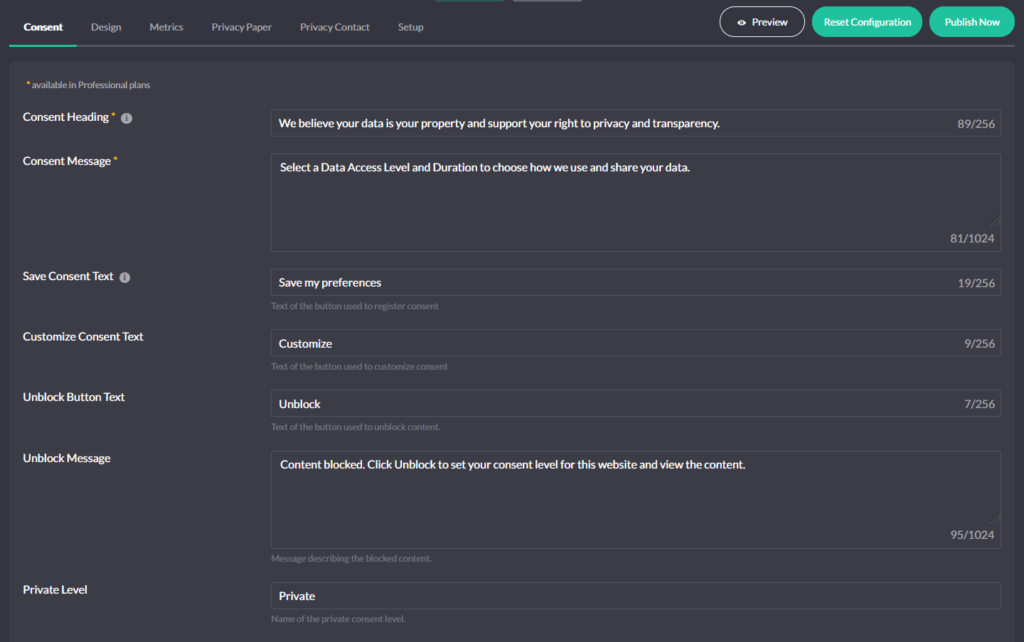
Consent messages (what visitors read)
Define the banner’s headline, explainer, and primary buttons. You can also set the Unblock texts (message + button) for blocked embeds and the Preferences section labels, including names for Private, Balanced, and Personalized levels. Keep English here; add translations on the Languages page.
Default Consent Level (and why “Private” is safest)
By law, non-essential storage stays off until a visitor saves a choice. “Private” maps to a “reject non-essential” stance and works as the safest default. You can switch the default to “Balanced” or “Personalized” if your policy allows it.
How a choice gets recorded (behavior controls)
The following behavior controls are configured in WordPress admin → Compliance by Hu-manity.co → Settings tab → Consent Behavior:
- Consent on Close — clicking the banner’s close icon registers the currently selected level.
- Consent on Click — any click on the page registers the current level.
- Consent on Scroll — scrolling beyond the Scroll Offset (0–500 px) registers the current level.
- UI Blocking — lock the interface until the visitor picks a level (a strict, consent-first flow without forcing a particular option).
- Reloading — reload the page after a choice or change when your stack needs it.
These align the banner with your regional and policy needs without extra code.
Revoke consent (two ways)
Configured in WordPress admin → Settings tab → Consent Behavior:
- Automatic — enable the Revoke consent toggle to show a floating widget; visitors can reopen the banner anytime and change their choice.
- Manual — hide the widget and wire your own control with
data-hu-action="cookies-notice-revoke".
In both cases, the banner applies the new state and (if configured) removes cookies set under the prior state.
Privacy links
Add and label links to your Privacy Policy and, where relevant, Do Not Sell/Share. Choose targets (same tab/new tab). Geolocation can show/hide these per region (more below).
Both link groups contain similar options:
- Link Label – Text of the link
- Link URL – Destination URL
- Link Target – Same window or new window
Geolocation (regional defaults)
Geolocation sets regional defaults before any choice: whether the banner shows, whether Revoke is visible, whether Autoblocking starts strict, and which links appear. You can use automatic baselines or define zones (EU/US/Other) yourself. Consent Modes (Google/Meta/Microsoft) read the same state.
Global Privacy Control (GPC)
When enabled, Compliance by Hu-manity.co honors the GPC browser signal as an opt-out boundary before interaction. The banner still appears; the visitor can choose Private, Balanced, or Personalized, but marketing/personalization purposes stay off until the visitor explicitly opts in.
Consent Modes (Google, Meta, Microsoft)
Turn on Consent Modes so platform tags adapt to the current consent state without custom code. Toggle Google Consent Mode in Configuration → Consent (and enable others in their sections). After a choice, the banner updates the modes so tags degrade/upgrade correctly.
Consent duration
Pick up to three durations for the banner’s Duration dropdown (e.g., 1, 3, 6 months; 1 or 2 years). The duration sets how long the consent cookie remains valid.